设置
设置
 快速交货
快速交货
 免运费
免运费
 国际贸易术语
 支付类型
支付类型


 市场产品
市场产品

IR Infrared Obstacle Avoidance Sensor With ATOM Matrix ESP32
2026-06-04 | By Ron Cutts
License: GNU Lesser General Public License Infrared (IR) Arduino ESP32
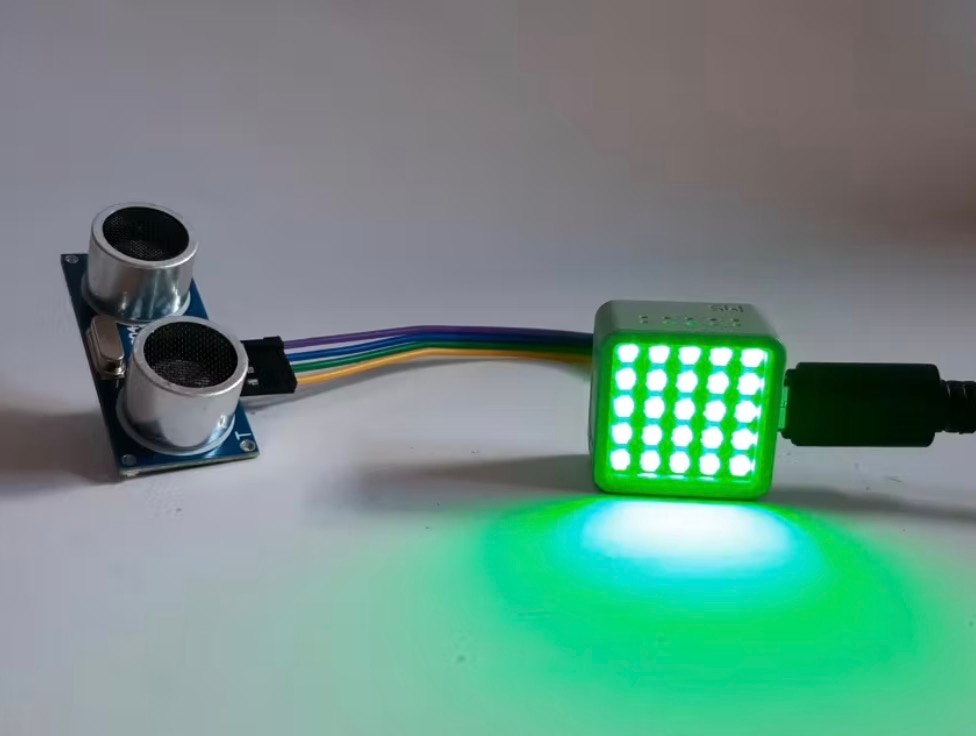
In this tutorial, we are going to use an infrared (IR) obstacle avoidance sensor with the ATOM Matrix ESP32. If there is no obstacle detected, a green light will be visible, and if the sensor detects an obstacle, a red light will be visible.
Watch the video!
Learn more about Visuino: What is Visuino
What You Will Need
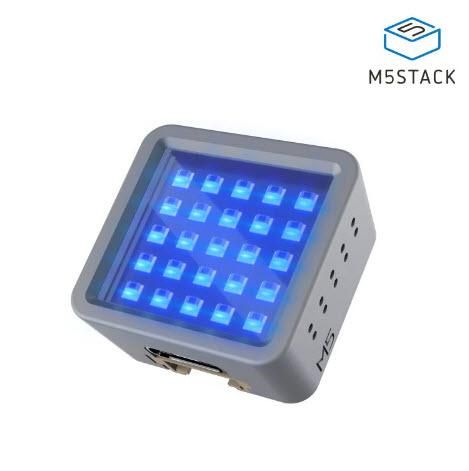
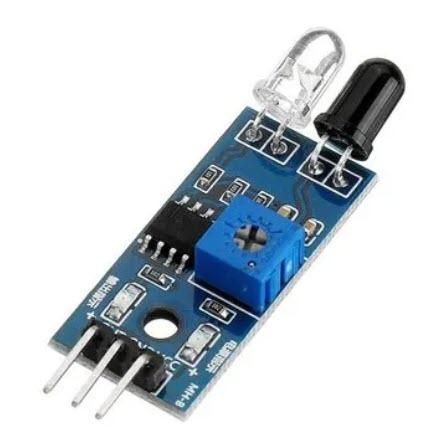
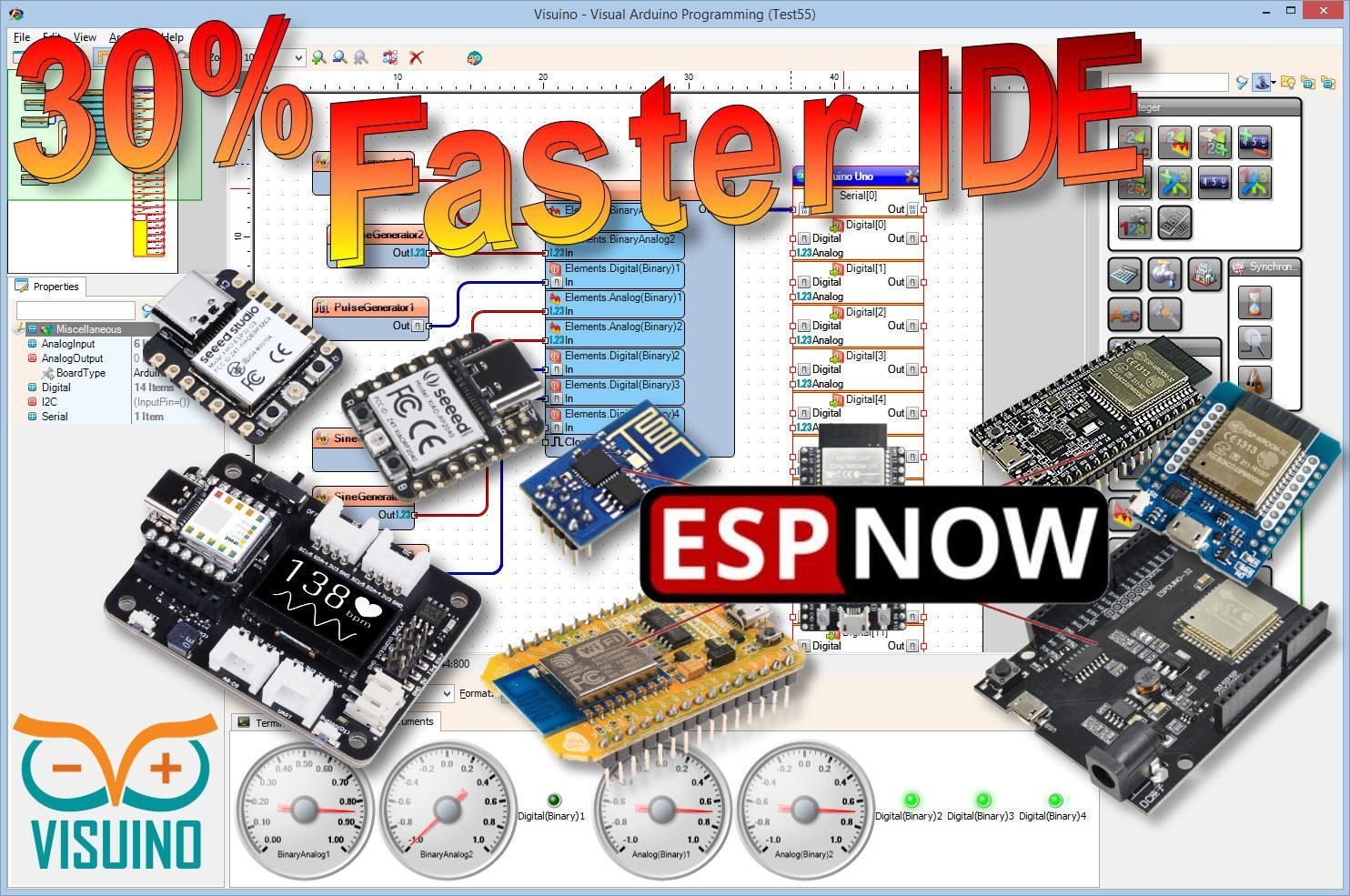
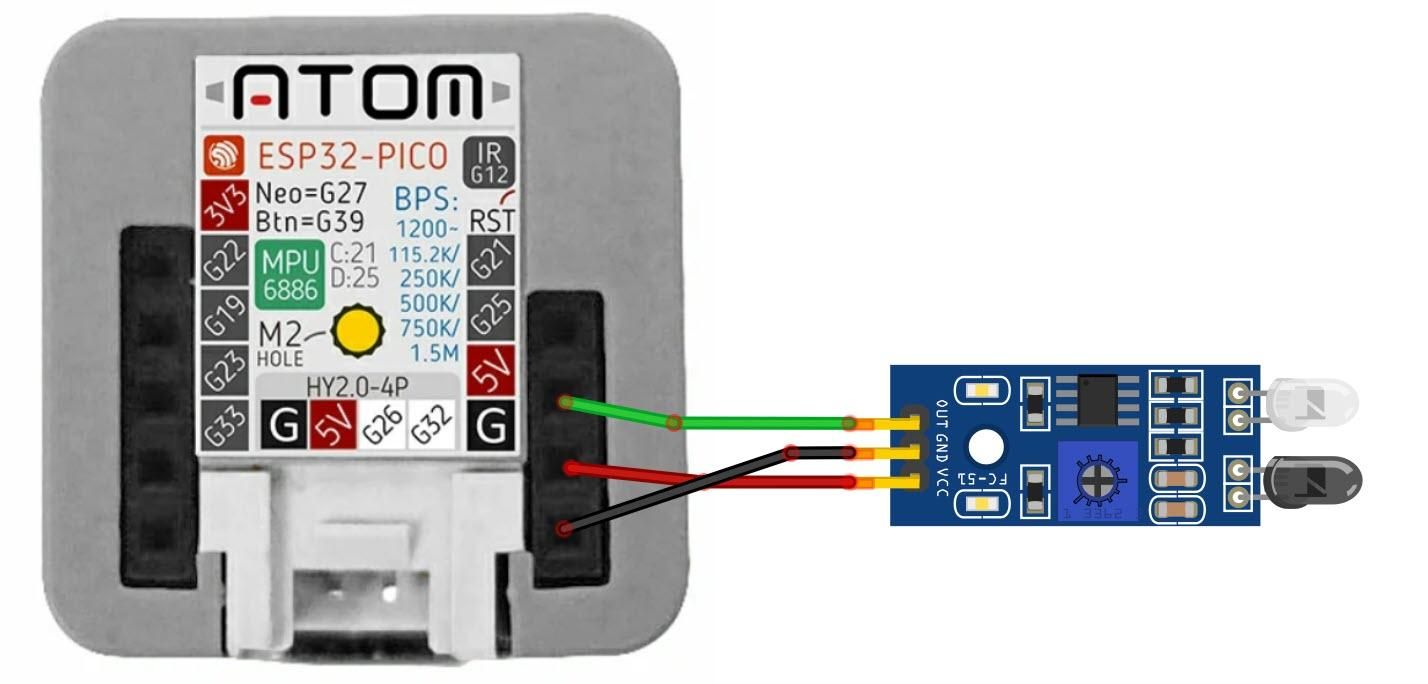
The Circuit
Connect the IR Obstacle Avoidance Sensor pin [VCC] to the Atom Matrix pin [5V]
Connect the IR Obstacle Avoidance Sensor pin [GND] to the Atom Matrix pin [GND]
Connect the IR Obstacle Avoidance Sensor pin [Out] to the Atom Matrix pin [G25]
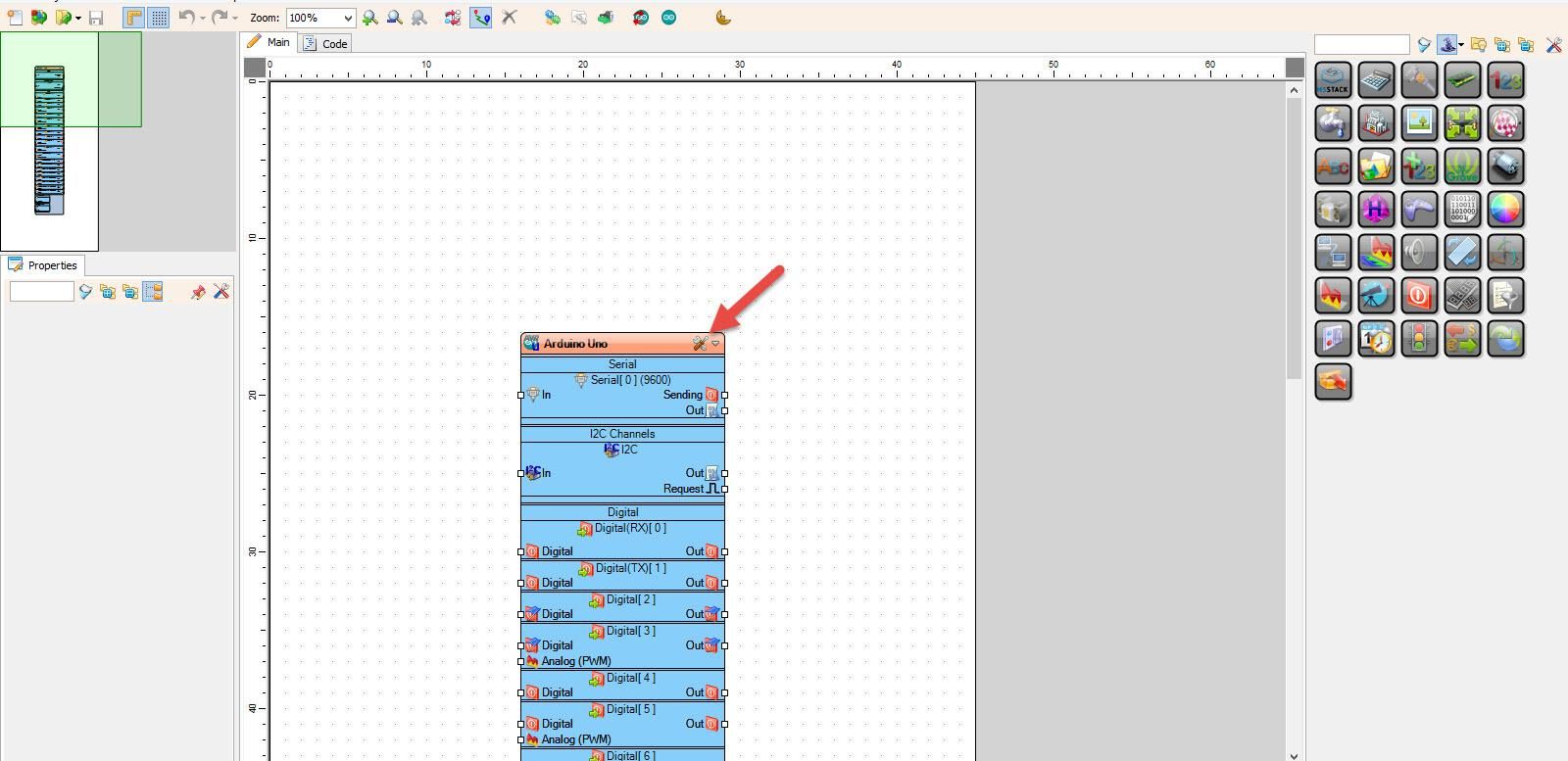
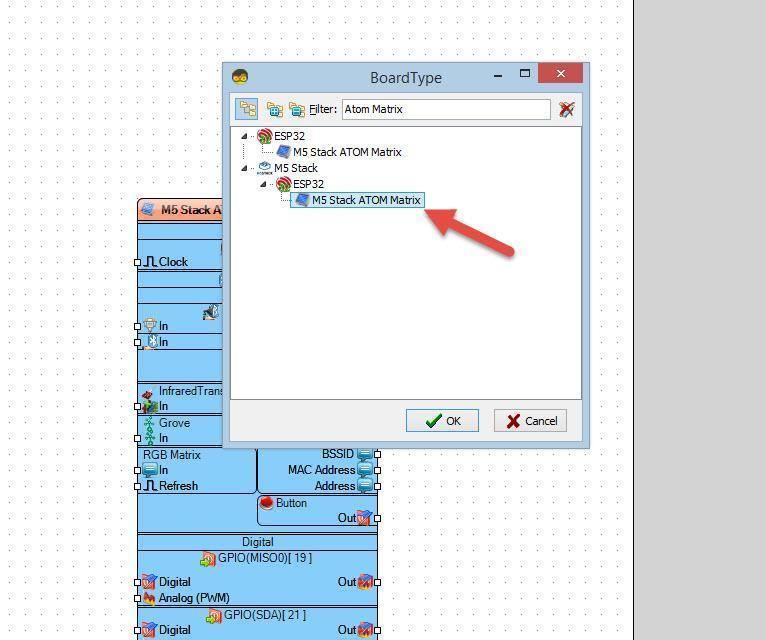
Start Visuino, and Select the Atom Matrix Board Type
Start Visuino as shown in the first picture. Click on the "Tools" button on the Arduino component (Picture 1) in Visuino. When the dialog appears, select "Atom Matrix" as shown in Picture 2
In Visuino, Add Components
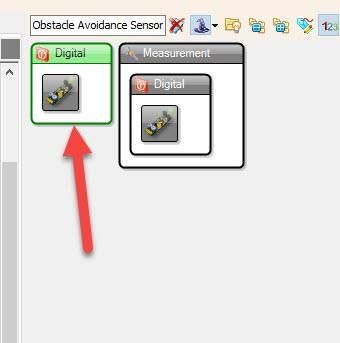
Add "Obstacle Avoidance Sensor" component
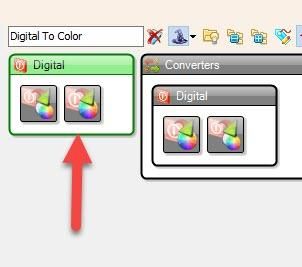
Add "Digital To Color" component
With "Digital To Color" component, we are going to set the Color based on the Digital input (True or False)
In Visuino Set Components
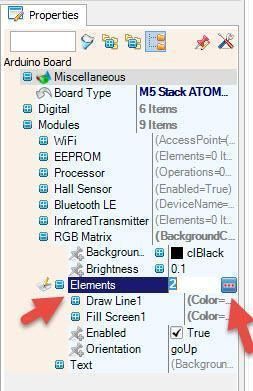
Select "M5 Stack ATOM Matrix" board in the properties window, expand "Modules">"RGB Matrix">"Elements", and click on the 3 dots button
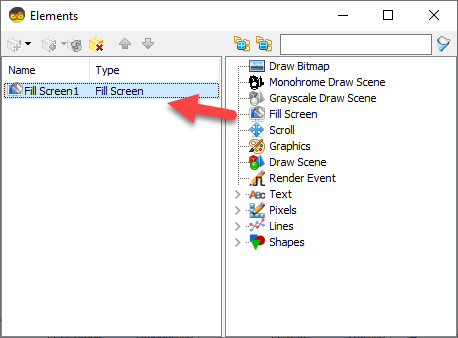
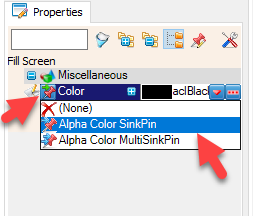
In the "Elements" window, drag "Fill Screen" to the left side and in the properties window select "Color" and click on the Pin Icon and select "Alpha Color SinkPin"
Close the "Elements" window
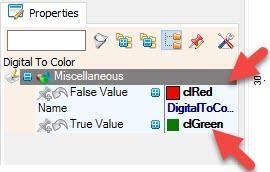
Select "DigitalToColor1" and in the properties window, set "False Value" to clRed and "True Value" to clGreen
In Visuino Connect Components
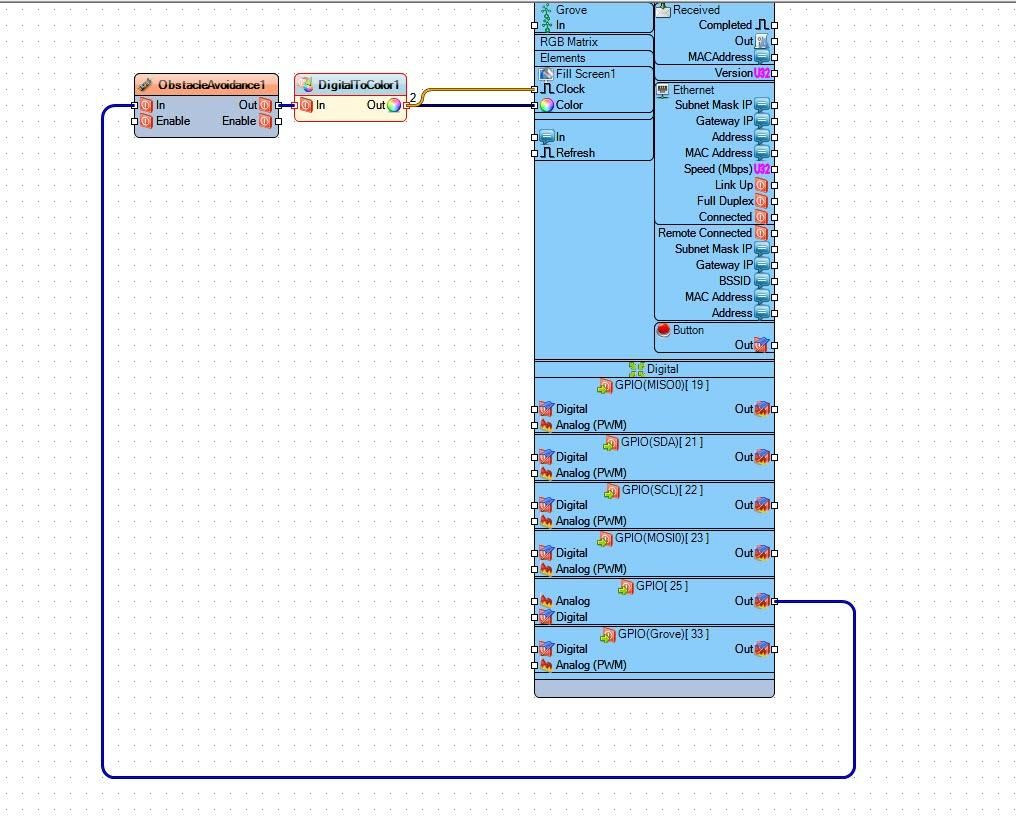
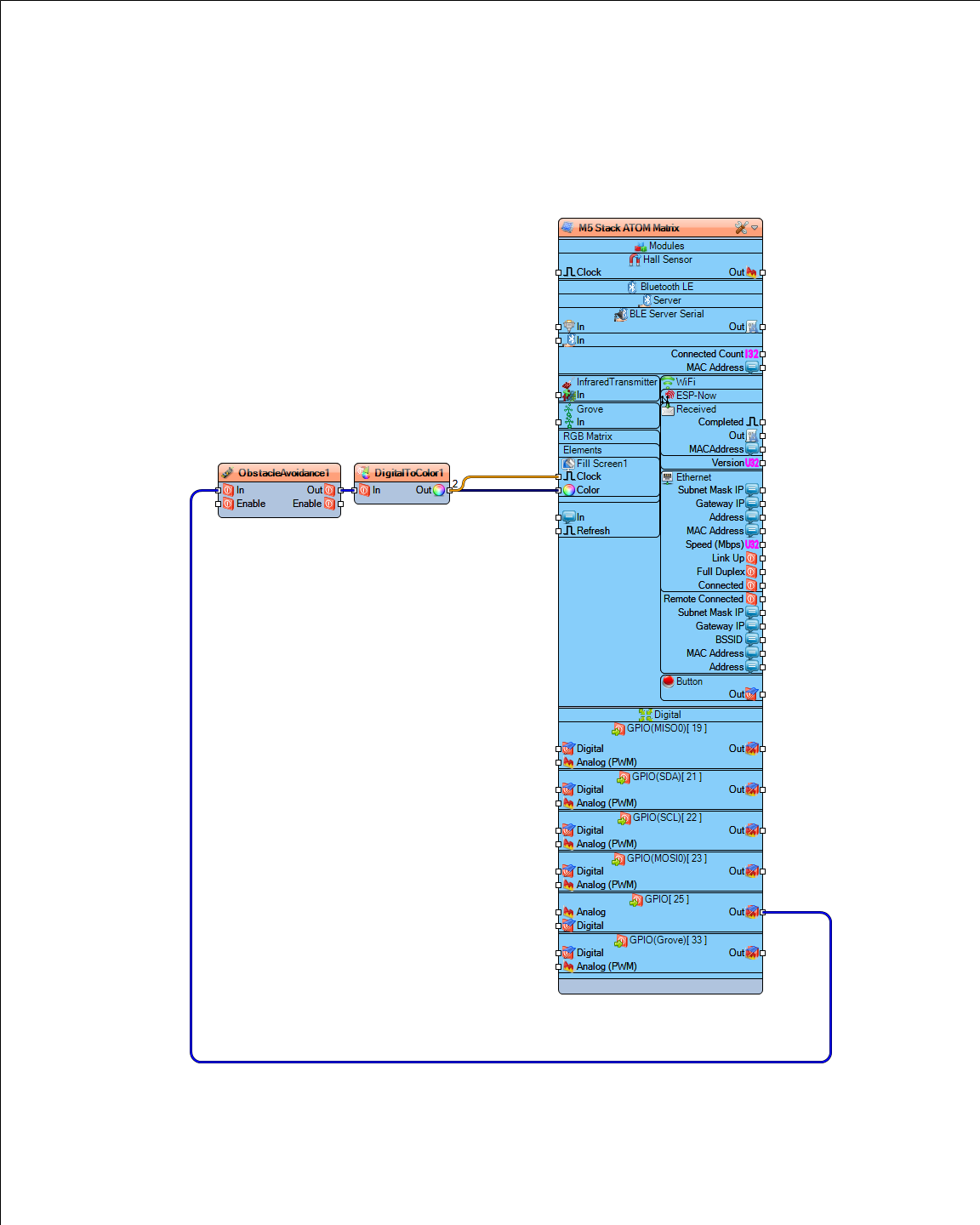
Connect "M5 Stack ATOM Matrix" pin [GPIO 25] to "ObstacleAvoidance1" pin [In]
Connect "ObstacleAvoidance1" pin [Out] to "DigitalToColor1" pin [In]
Connect "DigitalToColor1" pin [Out] to "M5 Stack ATOM Matrix" > "Fill Screen1" pin [Color]
Connect "DigitalToColor1" pin [Out] to "M5 Stack ATOM Matrix" > "Fill Screen1" pin [Clock]
Generate, Compile, and Upload the Arduino Code
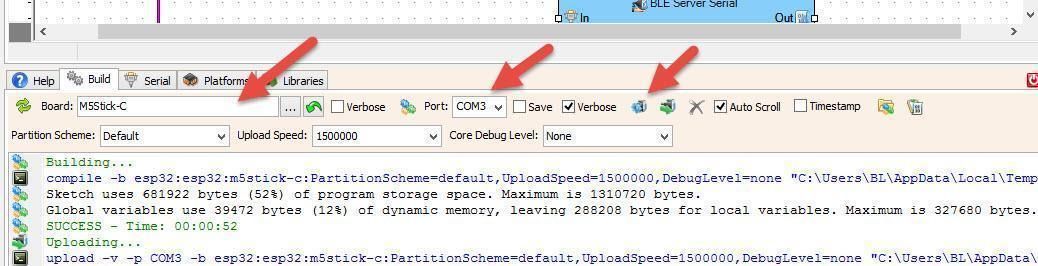
In Visuino, at the bottom, click on the "Build" tab, make sure the correct port is selected, then click on the "Compile/Build and Upload" button.
Play
If you power the ATOM Matrix module, the display will start to show a green color, and you can put an obstacle in front of the obstacle IR sensor, and the display will show a red color.
Congratulations! You have completed your project with Visuino. Also attached is the Visuino project that I created for this tutorial. You can download it and open it in Visuino: https://www.visuino.eu