


一. 前言
SenseCAP Indicator支持2.4G WiFi,因此可以订阅天气网站信息,经过解析后可以在屏幕上显示当前天气信息,从而制作一个桌面天气摆件。
二. 代码编写
程序的总体流程可以总结为:连接WiFi → 订阅天气网站并获取天气信息 → 解析这些信息 → 将信息串口输出并显示到开发板屏幕上
这里我订阅的网址是OpenWeatherMapCurrent weather and forecast - OpenWeatherMap,在这个网址注册账号后即可获取对应的API密钥
核心代码片段如下
定义WiFi和订阅网址的相关信息
const char* WIFI_SSID = "******";	// WiFi名
const char* WIFI_PWD  = "******";	// WiFi密码
const char* API_KEY   = "******";	// 天气API密钥
const char* CITY_ID   = "1796236";	// 上海City ID
const char* UNITS     = "metric";	// 摄氏度
const long  UPDATE_INTERVAL = 10 * 60 * 1000; // 10分钟更新
设置WiFi连接函数
void connectWiFi() {
  Serial.print("连接WiFi: ");
  Serial.println(WIFI_SSID);

  WiFi.begin(WIFI_SSID, WIFI_PWD);

  unsigned long wifiTimeout = millis();
  while (WiFi.status() != WL_CONNECTED) {
    delay(500);
    Serial.print(".");
    // 超时10秒退出
    if (millis() - wifiTimeout > 10000) {
      Serial.println("\nWiFi连接超时!");
      return;
    }
  }

  Serial.println("\nWiFi已连接");
  Serial.println("IP地址: " + WiFi.localIP().toString());
}
获取天气信息
bool getWeatherData() {
  if (WiFi.status() != WL_CONNECTED) {
    Serial.println("WiFi未连接,跳过天气请求");
    return false;
  }

  String url = "http://api.openweathermap.org/data/2.5/weather?id=";
  url += CITY_ID;
  url += "&appid=";
  url += API_KEY;
  url += "&units=";
  url += UNITS;

  HTTPClient http;
  http.begin(url);
  http.setTimeout(5000); // 5秒超时

  int httpCode = http.GET();
  if (httpCode != HTTP_CODE_OK) {
    Serial.printf("API请求失败,错误码:%d\n", httpCode);
    http.end();
    return false;
  }

  String payload = http.getString();
  http.end();

  JsonDocument doc;
  DeserializationError error = deserializeJson(doc, payload);

  if (error) {
    Serial.printf("JSON解析失败:%s\n", error.c_str());
    return false;
  }

  // 数据有效性检查
  if (!doc["main"].containsKey("temp") || !doc["main"].containsKey("humidity")) {
    Serial.println("API返回数据格式错误");
    return false;
  }

  temperature = doc["main"]["temp"];
  humidity = doc["main"]["humidity"];
  weatherDesc = doc["weather"][0]["description"].as<const char*>();

  Serial.printf("温度:%.1f°C,湿度:%.0f%%,天气:%s\n", temperature, humidity, weatherDesc.c_str());
  return true;
}
使用Arduino_GFX将天气信息显示到屏幕上
void displayWeather() {
  if (gfx == nullptr) return;

  // 清屏(黑色背景)
  gfx->fillScreen(RGB565_BLACK);

  // 1. 显示标题(白色,大号字体)
  gfx->setCursor(20, 40);          // 光标位置(适配480x480)
  gfx->setTextColor(RGB565_WHITE); // 文字颜色(RGB565格式)
  gfx->setTextSize(3);             // 字体大小(适配480分辨率)
  gfx->println("Shanghai Weather");

  // 2. 显示温度(红色,超大号字体)
  gfx->setCursor(20, 120);
  gfx->setTextColor(RGB565_RED);
  gfx->setTextSize(6);
  gfx->print(temperature, 1); // 保留1位小数
  gfx->setTextSize(2);
  gfx->print(" o");
  gfx->setTextSize(3);
  gfx->print("C");

  // 3. 显示湿度(蓝色,中号字体)
  gfx->setCursor(20, 220);
  gfx->setTextColor(RGB565_BLUE);
  gfx->setTextSize(6);
  gfx->print(humidity, 0);
  gfx->setTextSize(3);
  gfx->print(" % RH");

  // 4. 显示天气描述(绿色,中号字体)
  gfx->setCursor(20, 300);
  gfx->setTextColor(RGB565_GREEN);
  gfx->setTextSize(6);
  gfx->println(weatherDesc);

  //刷新屏幕(确保显示生效)
  gfx->flush();
}
三.实现效果
使用如下方式利用USB线将开发板与电脑连接

在Arduino中将代码烧录进ESP32-S3中,在Arduino的串口监视器中可以看到输出内容如下,其中包含了ESP32的固件信息、连接的WiFi、ESP32-S3的IP地址以及当前温度、湿度、天气状况

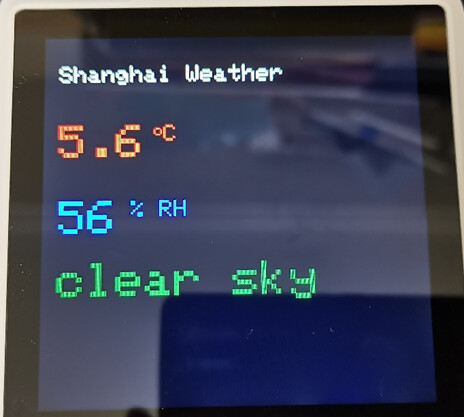
屏幕上也成功显示了当前上海的温度、湿度和天气
四. 心得总结
SenseCAP Indicator D1的ESP32S3核心有着WiFi功能,可以用于订阅网址获取网页信息,本文利用ESP32S3订阅了OpenWeatherMap这个开源天气网站并获取了天气信息,接着使用ArduinoJson库对获取到的信息进行解析,最后利用Arduino_GFX库完成了天气信息到屏幕的显示。这个流程基本走通了桌面天气摆件,后续可以进一步优化UI界面,并为这个摆件添加更多的功能。